How to Fix AI Crawler Access Errors: Debugging GPTBot, ClaudeBot, and PerplexityBot
As AI-driven search platforms like ChatGPT, Claude, and Perplexity become primary traffic sources, maintaining seamless crawlability for AI web crawlers is critical. However, many website operators discover too late that their high-value content is completely hidden from generative engines due to server misconfigurations, aggressive firewall rules, or faulty access permissions.
When user agents like OpenAI’s GPTBot (see OpenAI’s official GPTBot crawler documenation), Anthropic’s ClaudeBot, or Perplexity’s PerplexityBot encounter HTTP access errors (such as 403 Forbidden, 401 Unauthorized, or 520 Origin Errors), your site loses its chance to be indexed, summarized, and cited in AI search results.
In this comprehensive guide, we will break down why AI crawler access errors happen, how to diagnose them, and how to configure your web server and security layers to allow clean access without compromising your site’s security.

Understanding AI User Agents and Common Crawl Errors
Unlike traditional search engine bots like Googlebot or Bingbot, AI crawlers often operate under different access rules and IP ranges. Before troubleshooting, it helps to identify the primary user-agent strings involved:
-
GPTBot:
Mozilla/5.0 AppleWebKit/537.36 (KHTML, like Gecko; compatible; GPTBot/1.1; +[https://openai.com/gptbot](https://openai.com/gptbot)) -
ClaudeBot:
Mozilla/5.0 (compatible; ClaudeBot/1.0; +[https://www.anthropic.com/claudebot](https://www.anthropic.com/claudebot)) -
PerplexityBot:
PerplexityBot/1.0 (+[https://www.perplexity.ai/perplexitybot](https://www.perplexity.ai/perplexitybot))
When these bots attempt to access your website and fail, web servers typically log specific HTTP response status codes:
-
403 Forbidden: The most common error. Indicates that your web server, CDN (like Cloudflare), or
robots.txtexplicitly denied the bot entry. -
401 Unauthorized: Occurs when basic authentication or staging environment restrictions block public access.
-
429 Too Many Requests: Sent by rate-limiting rules when an AI bot crawls too aggressively within a short time window.
-
503 Service Unavailable / 520 Origin Errors: Triggered when WAF (Web Application Firewall) challenges (such as JavaScript verification or Captchas) block automated headless user agents.
Step 1: Diagnose Access Restrictions with Automated Checkers
Before editing server configs or Cloudflare settings, test whether your domain is currently blocking AI user agents. Manual cURL commands can be tricky due to headers and SSL validation, so automated checking speeds up the diagnosis.
💡 Featured Free Tool:
Use our Free GPTBot Checker to test whether OpenAI’s crawler can access your homepage and key landing pages without returning a 403 or 503 error.
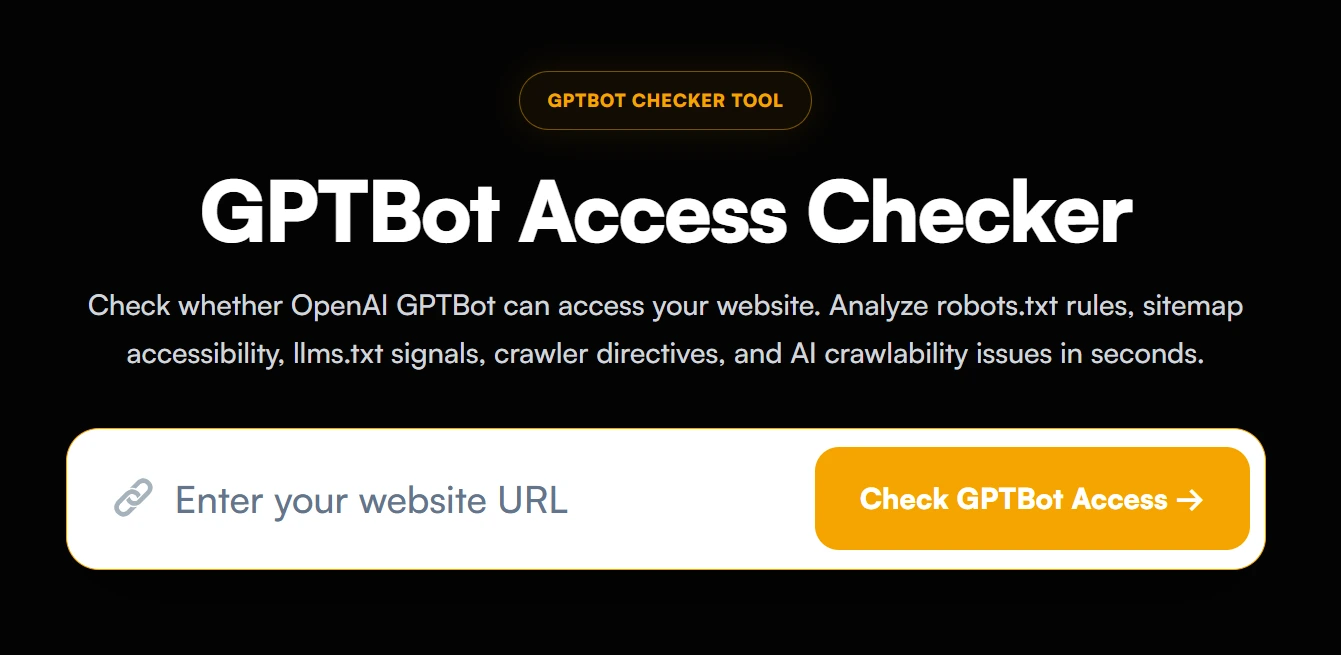
For a broader scan across multiple AI user agents (including ClaudeBot, Bytespider, and PerplexityBot), run a comprehensive test across your full domain.
💡 Comprehensive Scan:
Run your URL through our Free AI Crawlability Checker to instantly identify which specific AI user agents are blocked and at what layer (robots.txt, WAF, or HTTP response headers).
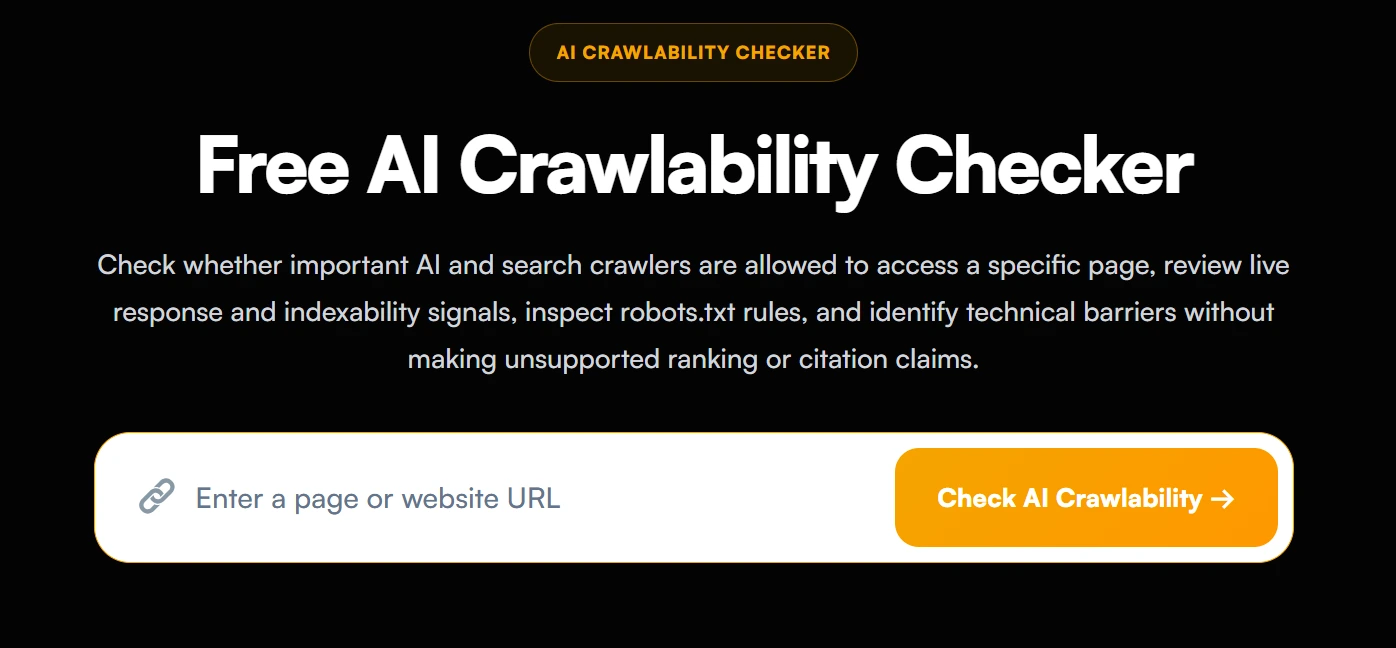
Step 2: Audit and Fix robots.txt Disallow Rules
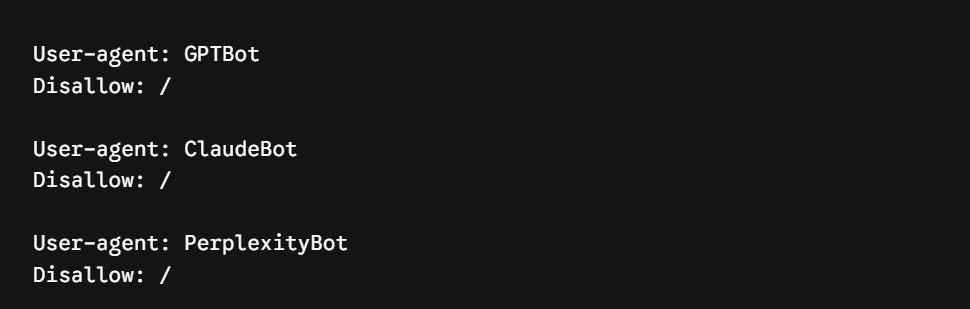
The simplest and most frequent cause of AI indexing failure is an unintended block inside your robots.txt file.
Many default WordPress security plugins or starter configuration files include global disallow directives that unintentionally catch AI user agents.
Incorrect Configuration (Blocking AI Bots):
Correct Configuration (Allowing AI Indexing):
To grant full access to AI crawlers while maintaining security for sensitive administrative directories, update your robots.txt as follows:
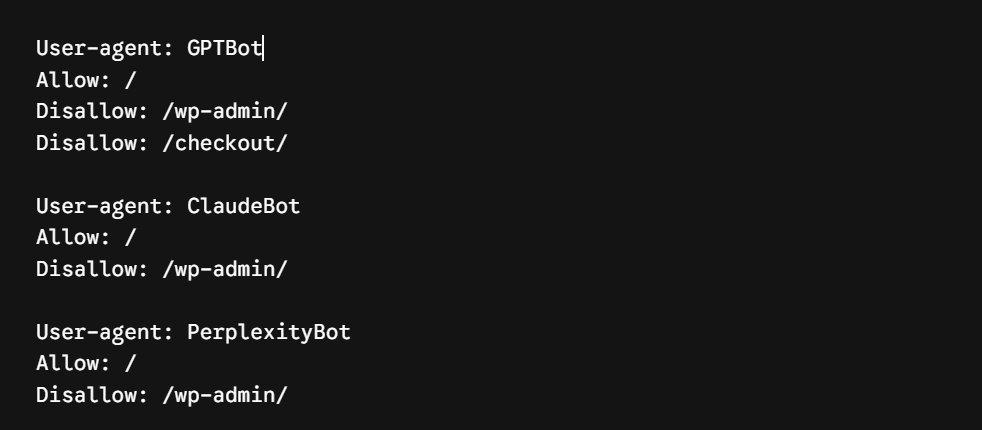
Note: Always place your allow directives above restrictive patterns if you use path-specific rules.
Step 3: Configure Cloudflare & Web Application Firewalls (WAF)
If your robots.txt is clear but your site still returns 403 or 503 status codes, the issue almost certainly lies within your Cloudflare, Sucuri, or server-level WAF settings.
Cloudflare’s automated Managed Rulesets frequently flag AI bots as suspicious automated traffic or “headless browsers,” triggering interactive JS Challenges or Managed Challenges that bots cannot solve.
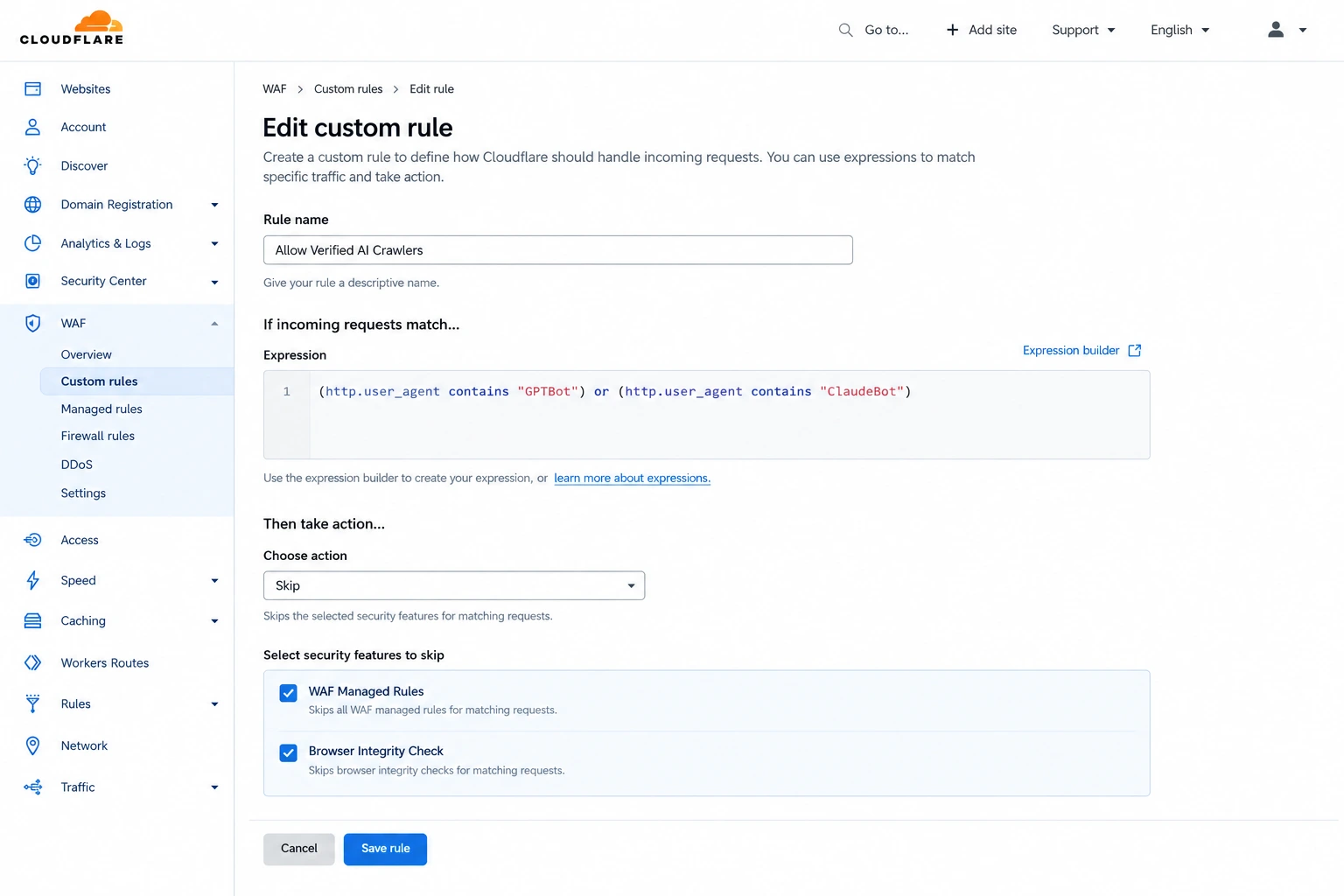
How to Whitelist AI Crawlers in Cloudflare:
-
Log into your Cloudflare Dashboard and select your website.
-
Navigate to Security > WAF > Custom Rules.
-
Click Create Rule and name it
Allow AI Crawlers. -
Define the field match logic using the User Agent field:
-
User AgentcontainsGPTBotOR -
User AgentcontainsClaudeBotOR -
User AgentcontainsPerplexityBot
-
-
Under Choose Action, select Skip.
-
Check the boxes for WAF Managed Rules, Browser Integrity Check, and Security Level.
-
Click Deploy Custom Rule.
Step 4: Verify Server-Level Rate Limits (.htaccess & Nginx)
If AI crawlers encounter a 429 Too Many Requests error, your web server’s rate-limiting module (such as mod_evasive on Apache or limit_req on Nginx) is throttling connection speeds.
Nginx Adjustment Example:
If you use Nginx, check your nginx.conf for restrictive rate limits. You can allocate a separate zone or increase the burst capacity for verified crawler IP blocks:
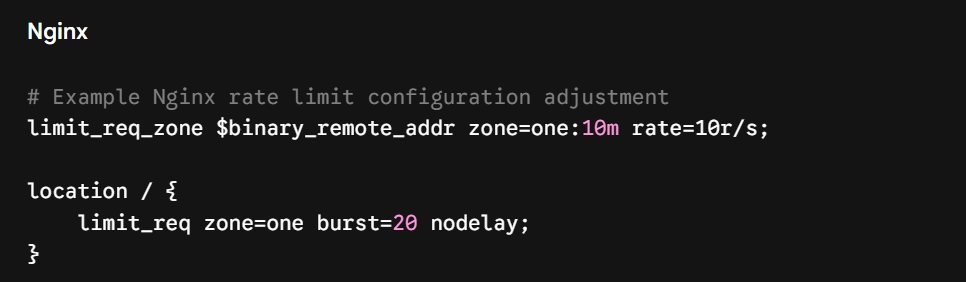
Ensure that your burst parameter provides sufficient breathing room when an AI engine fetches multiple documentation pages simultaneously.
3 Critical Pitfalls to Avoid During Debugging
-
Spoofed User Agents: Do not rely solely on
User-Agentstrings for sensitive server permissions without reverse DNS checks, as malicious bots can forge these headers. -
Blocking Entire IP Ranges: Avoid hard-blocking entire ASN subnet blocks unless necessary. OpenAI and Anthropic regularly expand their IP infrastructure.
-
Caching 403 Error Pages: Ensure your CDN or caching layer (e.g., Varnish, Redis, Nginx FastCGI) does not cache a 403 error response, which forces valid bot visits to keep receiving cached error pages.
Frequently Asked Questions (FAQs)
Why is GPTBot accessing my site if I never submitted my URL to OpenAI?
AI crawlers continuously discover new URLs via public sitemaps, backlink graphs, and web index feeds. Once discovered, they attempt to verify access rights automatically.
Does blocking AI bots stop them from training on my content?
Yes, placing explicit disallow rules for GPTBot or ClaudeBot in robots.txt instructs respectful AI companies not to collect your site’s data for training or real-time web search.
How quickly do AI crawlers re-try access after I fix a 403 error?
It typically takes between 24 hours to 7 days for crawlers to retry fetching blocked endpoints, depending on the site’s update frequency and domain authority.
Need an Automated Solution for Your Entire Website?
Debugging WAF rules, user-agent permissions, and HTTP header responses across hundreds of pages can quickly become complex.
Managing schema, crawlability, and llms.txt setups across large websites can quickly become complex. Test your domain today using our Free AI Crawlability Checker, or book a custom diagnostic with our Expert AI Visibility Audit.

Zulfiqar Ali
Zulfiqar Ali is an SEO Expert with over 8+ years of experience in AI SEO, Technical SEO, and Local SEO. At LLMrush, he focuses on AI search visibility, GEO, and technical website optimization, delivering practical strategies, technical analysis, and evidence-based guidance.
Follow on LinkedInCheck Other Interesting Posts




Join the Conversation
Share your thoughts, questions, or feedback about this article.